


Full View
Similar items
Domestic Transparent Colorful PC Computer Wired USB Vibration Game Controller
NOK21.38
NOK31.99 -33% OFF

Gamepad Sound Enhancer Headphone Converter For Xbox One S/X/XSX/XSS/ELITE/ELITE2 Plug And Play Games Accessories
NOK32.41
2 Pcs 2.4Ghz Wireless Gamepad PC Controller For Gaming G
NOK46.22
NOK51.91 -10% OFF
2 In 1 Telescopic Type C Cooling Cell Gamepad Dual Joystick 300mAh For IPhone Android Phone Switch PC
NOK50.92
NOK51.89 -1% OFF
Portable Camping Tent Ceiling Canopy 8000mah Rechargeable Wireless Fan Air Circulators With Remote Control Light
NOK115.62
NOK148.33 -22% OFF
XBOX Game Console Wired Controller Original Second-Hand
NOK44.59
NOK59.17 -24% OFF
Mini Portable Retro Handheld Console Children's Classic Nostalgic Machine Educational Toys For Elderly Game Players
NOK45.54
NOK72.47 -37% OFF
EasySMX T37 Bluetooth Gamepad, Wireless Switch Pro Controller
NOK60.80
NOK82.09 -25% OFF
BIGBIGWON Blitz 2 Pro Wireless Bluetooth Gamepads Somatosensory Controllers Customized 2000HZ TMR Joysticks For NS PC
NOK84.27
NOK106.74 -21% OFF
Foldable Wireless With Game/Chat Audio Balance Multiple For Xbox ONE/PS5/Mac/PC/Switch Bluetooth Gaming Headset
NOK49.77
NOK57.68 -13% OFF
Bluetooth Wireless Controller for Nintend Switch And Switch Lite Somatic Remote Wireless Joy-Pad
NOK742.33NOK938.32
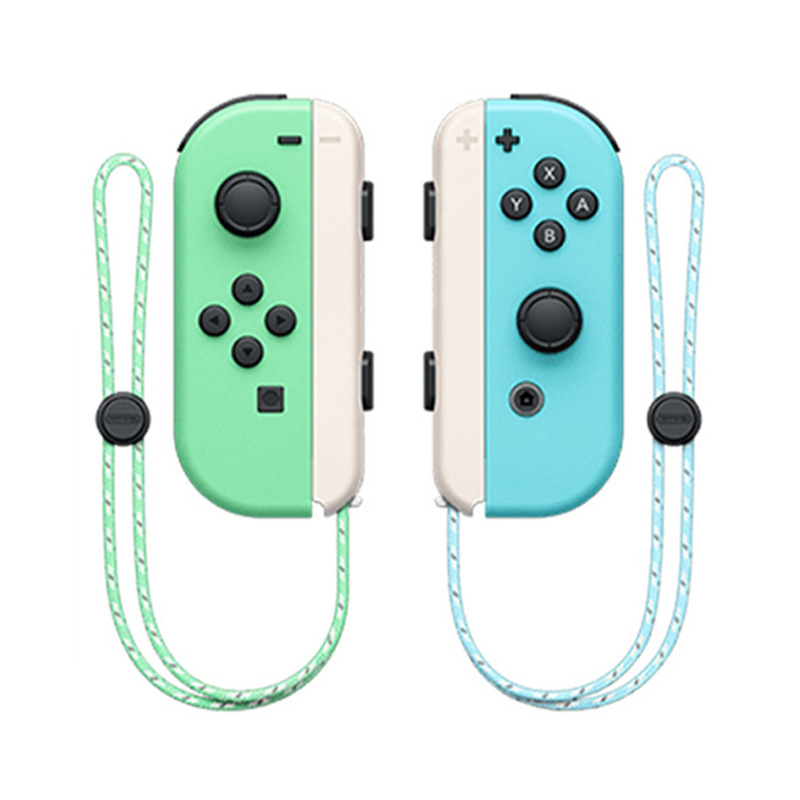
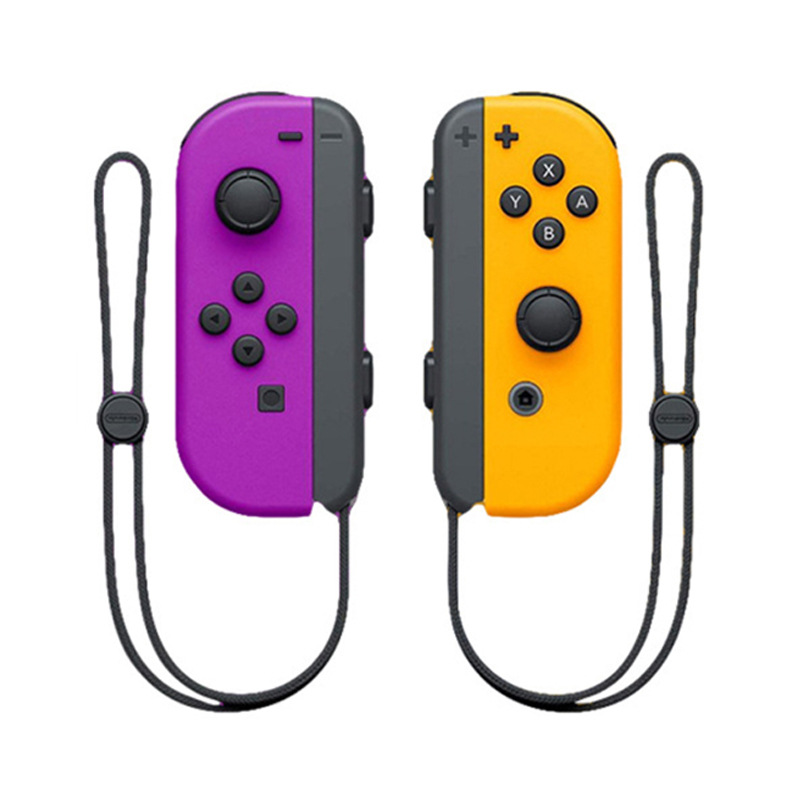
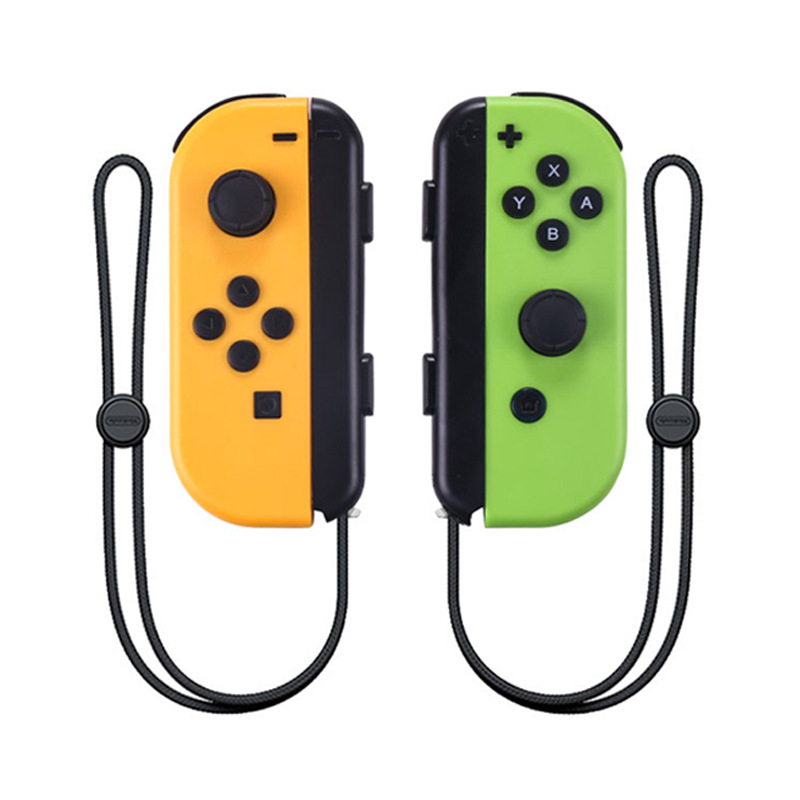
color : blue red
Quantity :

Report
Include copyright infringementFree Standard Shipping. See details
Estimated between Fri, Aug 7 and Tue, Aug 11
You can return the product within 30 days of receipt. See details
Shop with confidence

Money Back Guarantee
Get the item you ordered or your money back. Learn more
About this item
Sourced from WEIMAI 3C
Seller assumes all responsibility for this listing.Item number: 27623585
Item specifics
Item description from the seller
Joy-Con Game Controllers Gamepad Joypad for Nintend Switch Console Left + Right
Description:
Item type:Game controller
Dimensions (cm) 15.7 x 9.8 x 4
Colour: Red and blue
Operation:
1. Switch console settings
Turn on the Switch console, pressing the “setting” on the menu, click successively “system settings”→“Airplane mode”→“Controller Connection” to turn on the Bluetooth function.
b.Press 2 second for Mode button of the left controller or right controller, the led will be keeping flash and enter into the Bluetooth pairing mode.
c.Turn on the home screen of the console , click the “controllers” on the menu, then click the “change grip/order”, the console will be searching and pairing the controllers automatically. Press A button after connecting the controller, click the “close” to enter the menu, the you can play the game.
3.Automatic continuous connection
If the controller have been connected with the console and the console's Bluetooth is on, the controller will be connecting the console automatically when turn of the controller.
4.Turn on/off or charging/ sleep mode of the controller
a The 4 LED will flash slowly and circularly if the controller turn on. Pressing 3 seconds of the Mode button to enter the pairing mode, releasing the mode button after the 4 LED flashing quickly and circularly. The LED will light on if the paring is successful.
Press the Mode button for 3 seconds, the controller will turn off when connect the console.
b.Charging mode of the controller
1)Charging the controller by USB when the controller is off, the 4 LED will flash slowly. The 4 led will turn off after the fully charge.
2)When the controllers connected with the console through the slide way, the controller will be charged by the console if the console is charged by the USB.(If the console is not charged, when the voltage of the controller is lower than 3.7V, the controller also will be charged by console.
c.Sleep mode of the controller
1)Under the pairing, if the controllers can not connect with the console, the controller will turn off automatically and enter into the sleep mode.
2)The controller will turn off automatically and enter into the sleep mode, if the controller have not been operated within 5 minutes when connecting the console.
5.Re-set
Please reset the controller, if the controller is abnormal, like button disorder, crash, connecting problem, etc. Please use the slender object, like needle, insert and press the reset hole on the back
of the controller, the controller will be reset.
6.Sensor calibration
Put the controller on the table, Press “SR+Mode” to open the controller, the LED1&LED2 will light on. Then press the SL to calibration. Please note the controller must put on the table.
7.3D calibration
Press L3/R3 to turn on the controller, the LED3 &LED 4 will light on. Press SL to start the Calibration. LED 1/2/3/4 will light on. Shaking the controller for several times and press SL to finish the test.
8.The instructions of USB
USB connector is for charging and update the system of the controller. When charging the controller by USB, the controller can not connect the console through the slide way to avoid breaking the console.
9. Updating the system of the controller
If the console is updated, the controller also need to be updated. Please press the SL and UP/DOWN/LEFT/RIGHT of left controller orA/B/X/Y of right controller, the controller will enter into the PC mode. Connect the PC by USB(or press the SL and connect the PC by USB), updating the controller through the system.
10.Support the Wired function
Putting the controller on the Switch console through the slide way, the controller will connect the console automatically, then the Bluetooth part of the controller will disconnect the Bluetooth of the console. When the controller is out of power, the console will charge the controller when connecting the console by wired.
The controller is for the Switch console. The console can support up to 7 controllers(4 pcs of left controllers and 3 pcs of right controllers or 3 pcs of left controllers and 4 pcs of right controllers) to connect the console at the same time.
LED: Each controller have 4 LED, it can be used as channel or indicator.